Silk Mobile
Table of Contents (Homepage)
- Overview
- Setting Up
- Getting Started
- How To
- Connecting Devices And Emulators
- Preparing Applications For Testing
- Managing Applications
- Recording Tests
- Working With Test Commands
- Adding Commands To Your Scripts
- Object Commands
- Click
- ClickCoordinate
- ClickIn
- ClickOffset
- Drag
- ElementGetProperty
- ElementGetTableRowsCount
- ElementListPick
- ElementListSelect
- ElementListVisible
- ElementScrollToTableRow
- ElementSendText
- ElementSetProperty
- ElementSwipe
- ElementSwipeWhileNotFound
- GetAllValues
- GetElementCount
- GetElementCountIn
- GetTextIn
- IsElementBlank
- IsElementFound
- IsFoundIn
- LongClick
- RunNativeAPICall
- SendWhileNotFound
- VerifyElementFound
- VerifyElementNotFound
- VerifyIn
- WaitForElement
- WaitForElementToVanish
- GetCoordinateColor
- DragDrop
- Application Commands
- Device Commands
- Web (Hybrid) Specific Commands
- Utilities Commands
- Monitoring Commands
- Configuration Commands
- ExtractLanguageFiles
- SetDefaultClickDownTime
- SetDefaultTimeOut
- SetDefaultWebView
- SetDragStartDelay
- SetInKeyDelay
- SetKeyToKeyDelay
- SetLanguage
- SetLanguagePropertiesFile
- SetShowImageInReport
- SetShowPassImageInReport
- SetShowReport
- SetSpeed
- SetThrowExceptionOnFail
- SetWebAutoScroll
- StartStepsGroup
- StopStepsGroup
- TextFilter
- Miscellaneous Commands
- Controlling Element Identification Rules
- Editing Test Objects
- Executing Test Scripts
- Report Of Executed Test
- Working From Code Environment
- Continuous Integration
- Layout Verification Tests
- Use Device Vitals Monitors
- Troubleshooting
- Terminology
Connecting An Android Device
Silk Mobile gives you the ability to test real Android devices or a wearables.
Prerequisites:
-
The USB driver for your device should be installed on the user machine.
Each manufacturer has its own usb drivers. The following link provides links to the web sites for several original equipment manufacturers (OEMs), where you can download the appropriate USB driver for your device.
http://developer.android.com/tools/extras/oem-usb.html -
If multiple devices connected, they should have serial numbers (SN). Otherwise Silk Mobile will identify only a single device. In general, each device has a unique SN, but in some case, devices might have same SN (for example 123456).
-
The device should be “USB debugging” enabled.
Note: On devices, which are version 4 and lower, to enable “ USB Debugging”, go to: Settings->Applications->Development and set the "USB debugging" to enable.
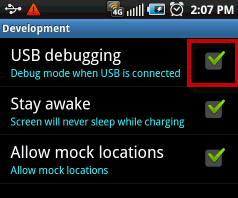
Note: On devices, which are version 4.2 and higher, to enable “ USB Debugging” follow these steps:
-
Settings > About Phone > Build number > Tap it 7 times to become developer
-
Settings > Developer Options > USB Debugging
Click 'OK' when the 'Allow USB debugging' pop-up shows up, after connecting the USB cable.
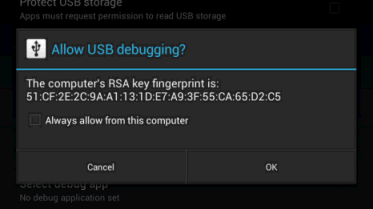
Note: On wearables, follow this link to enable “USB debugging”:
https://developer.android.com/training/wearables/apps/creating.html#SetupDevice .
Step 1: Connect the device to Silk Mobile .
-
I n Silk Mobile go to Device tab.
-
Click the Add Device icon, and select Android from the drop-down list.
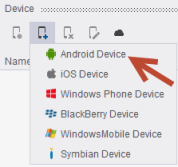
If no Android device it detected, a pop-up window will appear offering several USB drivers links for download.

-
Once the usb driver is installed, repeat step (1).
A pop-up will appear and you will then see the serial number of the Android device. Name the device, and then click on the "OK" button.
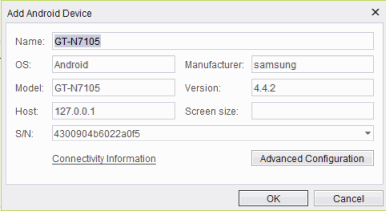
The selected device will appear in the "Device" list.
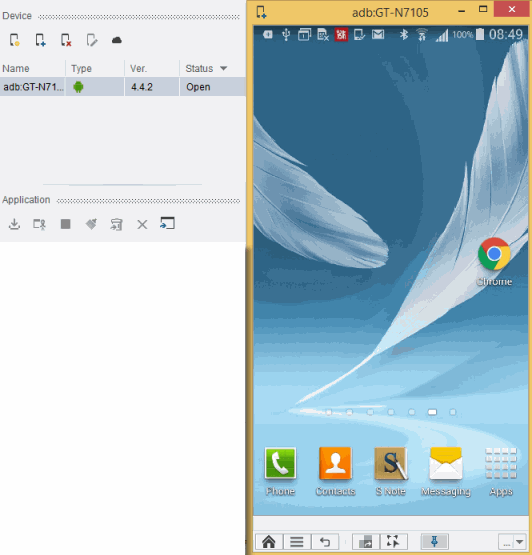
Step 2: Select the device and click the Open Device icon (check that its status changes from Ready to Open).
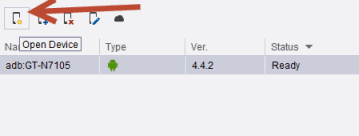
The device's reflection should then appear on your desktop.